An optical-glass study of grain, amber and blue light

Kolorshift · Labo FX

Light.
Colour.
Your character.

Understand what a control changes. Choose a texture, shape diffusion and find your balance. Explore the tools that take your photograph further.

From the first frame to the final copy.Lens FX are applied after the shot.

Photography

The look begins before the photo.

7 guides to explore
Principle illustration: The viewfinder
The viewfinderPrinciple illustration

Choose a film before you shoot.

Film begins in the viewfinder.

See the scene with your chosen film look in real time, then take the photo. Active looks accompany the viewfinder; Lens FX are adjusted after capture.

Controls within reach

  • Film selection
  • Preview while framing
  • Quick access to films

The viewfinder is set to 30 fps by default; 15 and 24 fps modes remain available. The saved copy is processed separately at the available quality.
Films

A collection of perspectives.

3 guides to explore
Principle illustration: The catalogue
The cataloguePrinciple illustration

Browse films by manufacturer.

Find a colour family.

The catalogue brings together colour, black-and-white and cinema looks, with a cartridge to recognise every reference.

Controls within reach

  • Manufacturers
  • Categories
  • Search by name

60 rendus actifs : 44 modèles fondés sur des données publiées et deux interprétations indépendantes non étalonnées.

Basic

Balance before effects.

11 tools to explore
Principle illustration: Temperature
TemperaturePrinciple illustration

Warm or cool the image’s balance.

Light in balance.

Temperature follows a scene’s atmosphere: window light, a cold sky or the warmth of late afternoon.

Controls within reach

  • Temperature
  • Comparison with the original
  • Individual reset

The control changes colour balance. It cannot recover a colour missing from the file.

Try this tool

Lens FX

Every effect has a purpose.

13 effects to explore
Principle illustration: Optical profiles
Optical profilesPrinciple illustration

Explore another way to shape light.

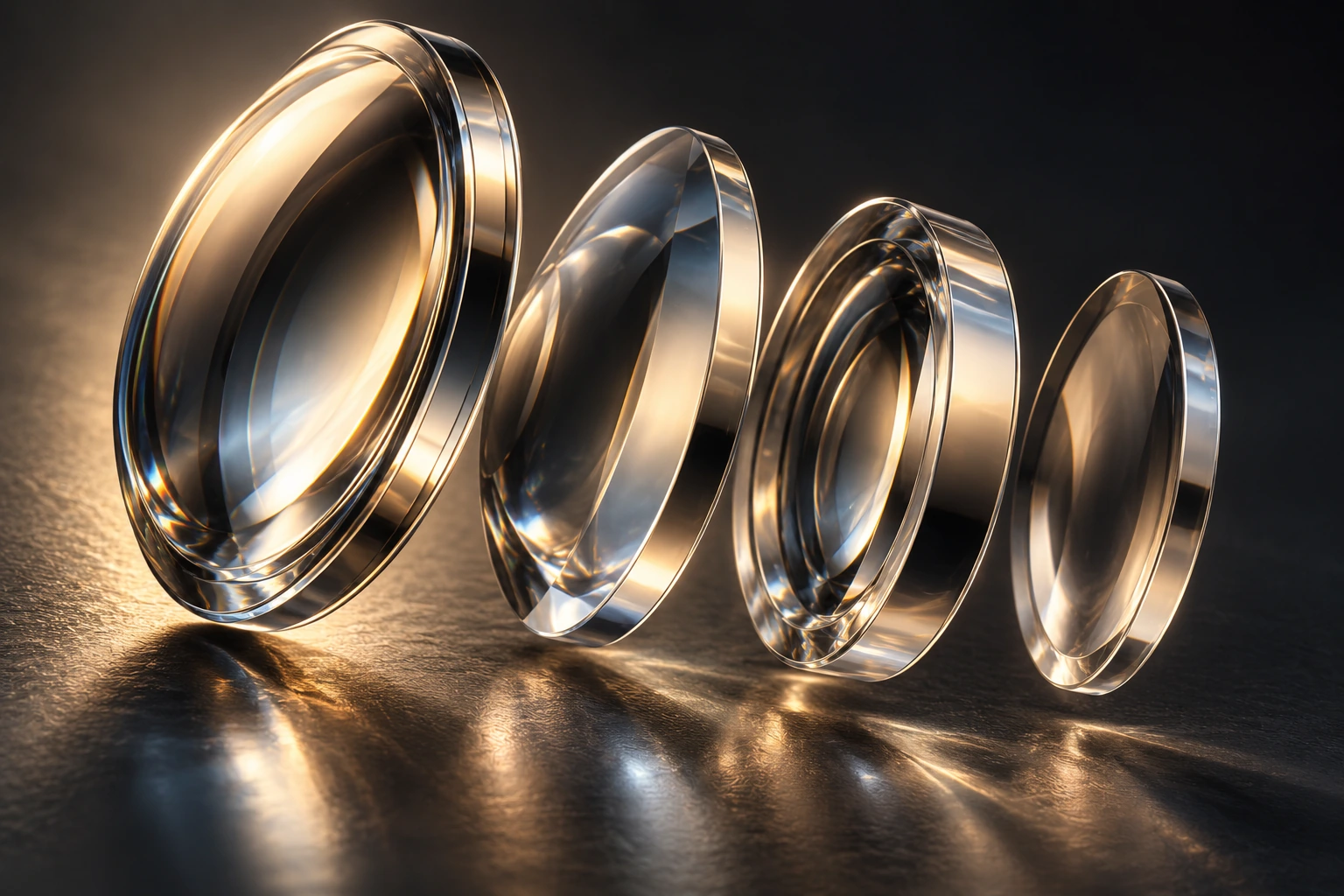
The character of a lens.

Choose an optical interpretation independent of the film to shape the edges and diffusion.

Controls within reach

  • Neutral
  • Helios
  • Soft cinema
  • Anamorphic
  • Intensity up to 200%

These profiles are independent 2D optical approximations, rather than certified measurements of physical lenses.

Try this tool

See what changes with
every adjustment.

Move the slider: the curve shows how the control changes the light. Brightening an image, choosing which highlights diffuse or softening the transition to blur: every tool works in its own way.

These studies follow the tools’ digital models. See their effect on photographs in the interactive preview.

Choose which lights diffuse

011Source luminanceMask contribution

Raise the threshold to diffuse only the strongest lights. Lower it to include more bright areas.

Solid line: current amount · Dotted line: initial amountGradual highlight selection · digital model diagram

RAW development

Closer to the source.

9 guides to explore
Principle illustration: RAW exposure
RAW exposurePrinciple illustration

Adjust exposure in the RAW workspace.

Develop from the raw source.

Development works from compatible raw-file data before the look is prepared. Adjust its light level in EV.

Controls within reach

  • RAW exposure
  • Value in EV
  • Original preserved

The RAW menu appears when a RAW file has been recognised. A JPEG or TIFF does not become a RAW.

See how the control works Vary the amount

Exposure acts on linear light

041Incoming lightLight before tonal response

+1 EV doubles linear light; −1 EV halves it. The final look then depends on the tonal response and film profile.

Solid line: current amount · Dotted line: neutral referenceExposure gain in linear light · digital model diagram

Files & gallery

From capture to final copy.

6 guides to explore
Principle illustration: Import
ImportPrinciple illustration

Import a JPEG, PNG or compatible RAW.

Continue with your own images.

Open an existing photograph to choose its film and continue editing, even if it was not taken in Kolorshift.

Controls within reach

  • JPEG / PNG
  • Recognised RAW files
  • Reference photograph

To try a film without stacking looks, start with a neutral image rather than a heavily graded photograph.

The best way to understand
is to try it.

Open the interactive lab

On the website: neutral JPEGs developed from real RAW files. In the application: capture, import and tools adapted to the recognised file.